Quick-start Guide
Log in
Click “Log in” in the top right corner of the navigation bar. This will work for all returning Liberty Mutual API customers.Request an account
If you are not a returning customer, email your Liberty representative and request an account. More details here. Once the representative has setup your account, you'll receive a welcome email to reset your password.Connect with a Liberty representative
If you do not have a Liberty representative, to connect with one.Complete the contact form that appears with the required information. Ensure all details are correct to avoid delays in approval.
First time logging in
Before logging in, download an authenticator app. We suggest using Microsoft Authenticator or Google Authenticator as Multi Factor Authentication (MFA) so you'll have a secure experience.1Once your account is created, you will get an email with a button directing you to reset your password. Click on the button to reset your password.
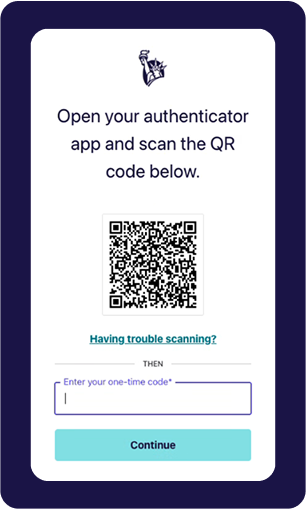
2Open your authenticator app. Scan the QR code and enter the one-time code in the open field. Then click "Continue".
 3
3You are now logged in!

If there was an issue please retry or if the issue persists.
Access API details
You can browse available APIs in the Catalog or your Liberty representative can email you direct links to specific APIs.Review API documentation
On the API detail page, click “API Reference” in the top right to access API documentation. This page outlines the resources and methods available for the selected API. This aligns with open API specification standards.
Requesting access
Once you have chosen an API you wish to gain access to, click “Request access” in the top right corner of the page, then fill out the form.Choosing environments
Use production for production applications, and non-production for testing applications.You'll receive separate keys and secrets by environment. So even if you request both at once, you'll have separate credentials.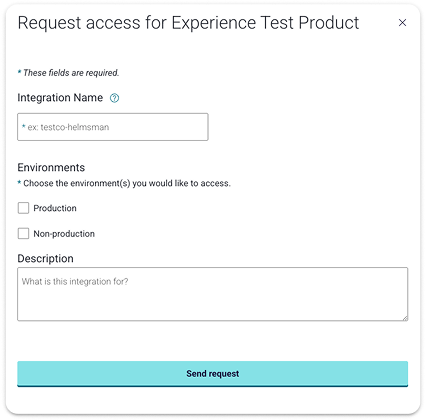
Naming app integrations
Your integration name must be unique to you, and it's best if it's easily understood. Example: digital-products-uiFinding your credentials
To find your credentials go to your Keys & Secrets page by clicking your profile icon in the top-right corner of the navigation bar. Then, select Keys & Secrets from the dropdown menu.On the Keys & Secrets page, you can check the status of any API access requests you have made. Since no email notifications are sent about approval, it's important to check this page regularly.Once your request is approved, your API credentials will be available on this page. You can view and copy your keys and secrets to use in your API calls.Accessing credentials
On your Keys & Secrets page, find the app integration you wish to access. From there you can select the environment dropdown that you wish to integrate with. Once you open the dropdown, you can click “Copy” next to the Key and Secret to copy to your clipboard.Understanding status
If the environment status is "Review in progress", check the environment drop-down menu to see the status of each API Product. This will tell you if you can integrate with that specific product.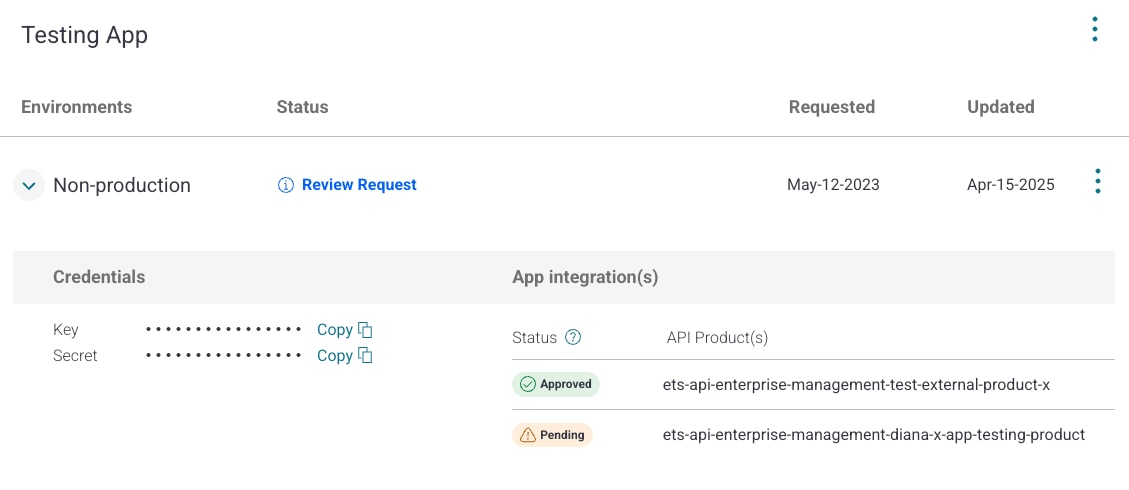
Requesting a token
To integrate with our APIs, you need an access token. Use the following command to make a POST request:123456curl --request POST \--url https://api-tst.{region}.libertymutual.com/oauth/token \--header 'content-type: application/x-www-form-urlencoded' \--data grant_type=client_credentials \--data client_id=your-consumer-key \--data client_secret=your-consumer-secretIn the response, look for a value called “access_token”. This token will be valid for one hour, so you won’t need to request a new token until it expires.Calling an API
Below are examples of calling an API using your access token. You'll find the exact URL in the API specification of the product you're accessing.123# For Productioncurl -X GET "https://api.{region}.libertymutual.com/{api-path}" \-H "Authorization: Bearer YOUR_ACCESS_TOKEN"123# For Productioncurl -X GET "https://api-tst.{region}.libertymutual.com/{api-path}" \-H "Authorization: Bearer YOUR_ACCESS_TOKEN"{region}: Replace with us, ap, or eu depending on the region.{api - path}: Replace with the specific path for the API you are calling. This will be in the API Specification.YOUR_ACCESS_TOKEN: Replace this with a valid bearer token for authorization.
FAQs
Requesting an account helps us ensure the security and privacy of our customers and employees. This process allows us to verify your identity before granting access.
If you would like to request an account, follow the guide above under accessing account.
When your account is created, you will receive an email from no-reply@libertymutual.com.
Check your spam or junk folder to ensure it hasn't been filtered. If you still don't see the email,
To change your name and email you will need to contact your Liberty representative with the requested changes.